One of the things I’ve always wanted to do with PowerPivot is to parameterise the connections used to import data. Despite PowerPivot’s ability to handle massive data volumes, most of the time you want your end users to import only the data they actually need – and for them to be able to specify filters on the data themselves somehow. The only way to do this in Excel 2010 was to have them go into the PowerPivot model and change the connection themselves, which is not very user-friendly, but now we have a proper PowerPivot object model in 2013 we can modify connection strings in VBA (so we can take filtering information direct from the worksheet) and this post shows how. I’d like to acknowledge the help I got from Kasper’s post here which covers very similar ground, but I came across a few interesting things while building the example here so I thought it was worth a post on its own.
Let’s say we want to build our own Bing search engine client in Excel 2013, where a user can enter a search term in a cell, click a button to run the search and then not only be able to see the search results but analyse them in PowerPivot and Power View. The first step is to sign up to the Bing search API in the Azure Marketplace and then import some search results with a hard-coded search term (this tutorial will help if you’re not sure how to do this); I used Bing image search to return some results with urls pointing to images on the web. This will create a connection in the Workbook which we can then modify programmatically. However I ran into a problem at this point: I found that only connections created on the Data tab on the ribbon can be modified in VBA, whereas connections created in the PowerPivot addin cannot. This means I had to click here:

..to create my connection, and NOT here:
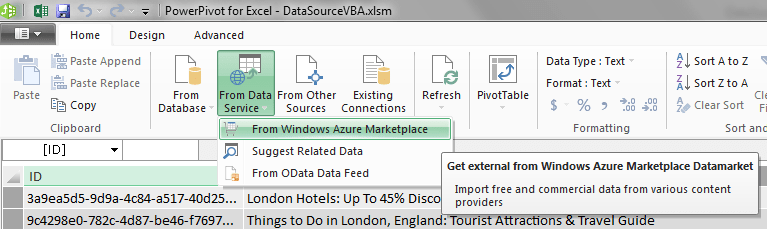
When you open connections created in the PowerPivot window in the Connections dialog from the Data tab, you see the following message: “Some properties cannot be changed because the connection was modified using the PowerPivot Add-In”

Trying to edit connections created in PowerPivot using VBA just gave me an error.
Not much of a issue though. With the connection in place, here’s the VBA code that’s needed to alter the connection string and replace the search term with a value from a cell in the worksheet:
Sub RunImageSearch()
Dim mdl As ModelTable
Dim wcon As WorkbookConnection
Dim cs As String
Dim ss As String
Dim azurekey As String
azurekey = "Insert your Azure Marketplace account key here"
Set mdl = ActiveWorkbook.Model.ModelTables("Image")
Set wcon = mdl.SourceWorkbookConnection
cs = "DATAFEED;" & _
 "Data Source=https://api.datamarket.azure.com/Bing/Search/v1/" & _
 "Image?Query=%27ReplacePlaceholder%27;" & _
 "Namespaces to Include=*;Max Received Message Size=4398046511104;Integrated Security=Basic;" & _
 "User ID=AccountKey;Password=" & azurekey & _
 ";Persist Security Info=false;" & _
"Base Url=https://api.datamarket.azure.com/Bing/Search/v1/Image?Query=%27ReplacePlaceholder%27"
ss = WorksheetFunction.EncodeURL(CStr(ActiveWorkbook.Sheets("Search Term").Cells(2, 3).Value))
wcon.DataFeedConnection.Connection = Replace(cs, "ReplacePlaceholder", ss)
mdl.SourceWorkbookConnection.Refresh
End Sub
Three points to note here:
- If you’re copying this code, you need to enter your own Azure Marketplace account key in the place specified
- The search term needs to be url encoded, and luckily there’s a new function to do this in 2013: EncodeURL()
- If you’re using a different data source then obviously the connection string will be different. Also, because I’m using data from the Azure Marketplace my SourceWorkbookConnection object has a connection of type DataFeedConnection – other data sources will have different connection types, so check the value returned by SourceWorkbookConnection.Type (the list of values in the XLConnectionType enumeration on the web is, at the time of writing, out of date but Object Explorer is up-to-date)
That’s all there is to it. The macro can be bound to a button on the worksheet like so:

And we can then do all kinds of clever things to analyse the search results. For example, with the image search results we can show thumbnails in a Power View report (see Jeremy Kashel’s post for details):
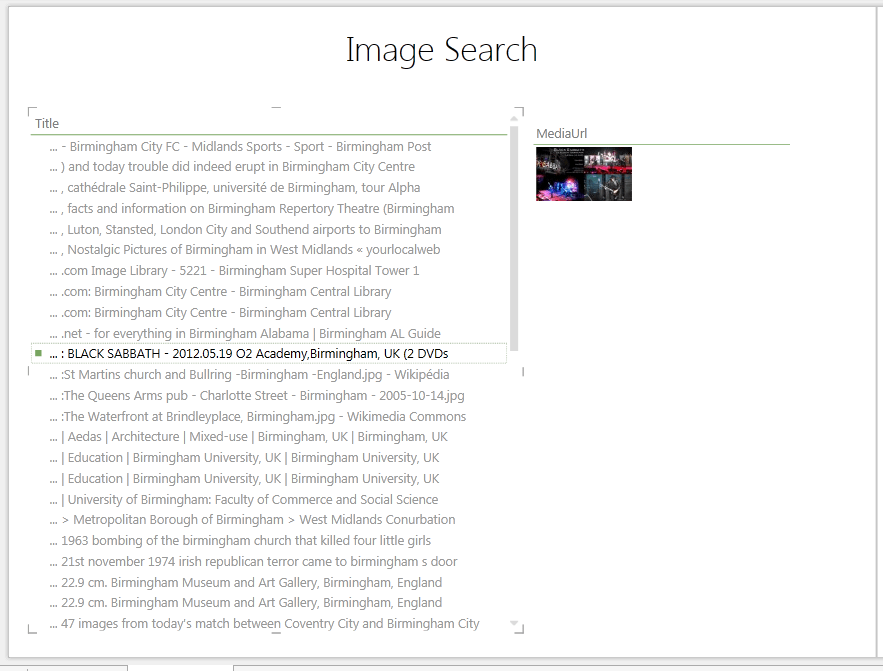
You can download the whole example workbook here, although again you’ll have to edit the VBA to enter your own Azure Marketplace account key if you want it to work.

Interesting… How come you opted VBA versus the use of Apps for Office framework (HTML, JavaScript) for the Bing app in Excel 2013 ? I have been under the impression that Excel VBA solutions were not supported/functional when Excel is published to SharePoint, Office365 or even in the RT versions of Excel. Has that changed? Do you have any news on support for VBA or macros in Excel futures?
It’s because I’m not much of a coder, and while I can hack some VBA I don’t know any JavaScript! I guess 99% of all Excel users will be in the same position too. You’re right, VBA isn’t supported on Sharepoint and I have no idea what the MS roadmap for this is.
Hi,
Many thanks for this sample. Not seen this in any other blog.
This is more or less what I want. I tried to use it but got stuck.
I would like to impor data from a SQL Expres database, and be able to filter data (when importing it) using a cell value.
Can anyone help?
Thanks in advance
Jose Lourenco (Portugal)
Is this for use in PowerPivot too? If so, then this should be the general approach you need, I guess; what error are you getting?
HI Chris,
I do not succeed to change connection which is created through excel UI but then modified with power pivot. Example: connection is made to one sql server database and I am trying to set connection string to another database. If tables are not modified (joined) by power pivot addin everything works.
I tried through com object model and excel macors. Simply Excel does not allow to change anything either through UI either through code.
Strange – what about when you create relationships inside Excel and not in the PowerPivot UI?
I get an Run-time error ‘1004’ when updating the connection for an OLEDB connection.
Sub ChangeCon()
Dim mdl As ModelTable
Dim wcon As WorkbookConnection
Dim cs As String
Servername = Sheet7.Range(“b2”).Value
DatabaseName = Sheet7.Range(“b3”).Value
cs = “OLEDB;Provider=SQLOLEDB.1;Data Source=” & Servername & “;Persist Security Info=False;Integrated Security=SSPI;Initial Catalog=” & DatabaseName
Set mdl = ActiveWorkbook.Model.ModelTables(1)
Set wcon = mdl.SourceWorkbookConnection
wcon.OLEDBConnection.Connection = cs ‘returns error – VBA Run-time error ‘1004’: Application-define or object-define error
mdl.SourceWorkbookConnection.Refresh
End Sub
Servername = bptmasql
Databasename = BxrCloneDb08
cs=OLEDB;Provider=SQLOLEDB.1;Data Source=bptmasql;Persist Security Info=False;Integrated Security=SSPI;Initial Catalog=BxrCloneDb08
mdl.SourceWorkbookConnection.Type = 1 which is OLEDB
original – wcon.OLEDBConnection.Connection = OLEDB;Provider=SQLNCLI11;Data Source=bptmasql;Integrated Security=SSPI;Persist Security Info=false;Initial Catalog=Bxr__Db-03
It’s hard to say, but I think your connection string might be incorrect: I don’t think you should have the text I’ve highlighted in it.
cs = “OLEDB;Provider=SQLOLEDB.1;Data Source=” & Servername & “;Persist Security Info=False;Integrated Security=SSPI;Initial Catalog=” & DatabaseName
Hi Chris,
When i try the same sample i was also getting same error ” Run-time error ‘1004’: Application-define or object-define error”
Since highlighted section say, we can not modify, but using macro can we able to modify?
Below is the code, i tried but i am getting the above error. my connection string is right.
Dim mdl As ModelTable
Dim wcon As WorkbookConnection
Dim cs As String
Dim ss As String
MsgBox ActiveWorkbook.Model.ModelTables.Count
Set mdl = ActiveWorkbook.Model.ModelTables(“SigAcc”)
Set wcon = mdl.SourceWorkbookConnection
wcon.OLEDBConnection.Connection = “OLEDB;Provider=SQLNCLI10;Data Source=.\testServer;Initial Catalog=myDB;Integrated Security=SSPI;Persist Security Info=false”
mdl.SourceWorkbookConnection.Refresh
Which line are zou getting the error on?
This line is error
wcon.OLEDBConnection.Connection = “OLEDB;Provider=SQLNCLI10;Data Source=.\testServer;Initial Catalog=myDB;Integrated Security=SSPI;Persist Security Info=false
I guess there’s something wrong with your connection string then. Can you turn on macro recording and create a connection to your database from Excel, and see what the VBA that gets generated looks like?
Hi Chris,
Why not use Power Query and create a function which accepts the search term. I’m assuming the answer is that you wanted to show how it can be done in PowerPivot.
I’m still not clear on when to use “Data” vs “Power Query” vs “PowerPivot”. All three have an “import from Azure” option. Too confusing for me let alone typical Excel user.
Yes, and this was before Power Query was even properly released. It is confusing though – I would guess that in future versions of Excel, Power Query will become the new Data tab, which should make things a little simpler.
I hope you are right about Power Query replacing the Data tab. There is too much duplication and confusion with both. I just went through the exercise of creating a parameterized Bing search using Power Query. It works but I’m afraid that for a typical user it will be a challenge. Perhaps my approach was too complicated. I first created a M function “BingSearch”. I then created a parameters table and then did a “From Table” in Power Query, and added a custom column which invoked BingSearch and then expanded columns. Too many steps. Is there a more direct way to do this?
I thought initially that I could just edit the M query (without creating a function) and change the InvokeWeb to be something like
InvokedWeb = Web(“Birmingham”, null, null, null, null, null, null, null)
to
InvokedWeb = Web(Sheet1!$B$1, null, null, null, null, null, null, null)
But it doesn’t appear that M can directly reference Excel cells. It would be so convenient if it could. Please tell me I just didn’t use the correct syntax.
In summary, as you see I’m basically wanting the same semantics that you get with a Web Query IQY where parameter values can be bound to Excel cells.
You can directly reference tables in Power Query/M, but not cells unfortunately. I agree it would be a very useful thing to be able to do…
I have a solution which is I guess as close to a “cell reference” as I can get. I created a function
let
GetReportParam = (param as text) =>
let
term = ( Table.SelectRows(Excel.CurrentWorkbook(){[Name=”Parameters2″]}[Content], each [ParamName] = param) ) {0} [ParamValue]
in
term
in
GetReportParam
And now where I want to query Bing for a term, I can say
let
term = GetReportParam(“BingQuery”),
InsertedCustom = BingPageRank(term)
in
InsertedCustom
This is succinct enough to make me happy. Any anyway having a params table is more structured than just referencing arbitrary cells.
Hello Chris,
I have tried using this code to change the connection string in my powerpivot enabled excel workbook. However the connection string I wish to change is greyed out and says “Some properties cannot be changed because this connection was modified using the PowerPivot Add-in”. We need to deploy a multitude of workbooks like this to different environments and if we can’t change the connection strings we are in big trouble. I have tried your code above but we receive an error “Run-time error ‘1004’; Application-defined or object-defined error”.
At this juncture we are stuck and don’t know how to proceed. Do you have any advice?
Best Regards,
Geoff
Are you creating your connections in the Data tab in Excel or in the PowerPivot window? As the post says, this doesn’t work if you create connections inside the PowerPivot window.
Hy Chris,
Have you succed to solve Saravana question ?
I am facing the same problem, i cannot change the connection string created to import data from ms sql server to power pivot. The connection was created under excel/data (not in powerpivot). The error code: Run-time error ‘1004’ for line wcon.OLEDBConnection.Connection = “OLEDB;Provider=SQLOLEDB.1;Integrated Security=SSPI;Persist Security Info=True;Initial Catalog=MyDatabase;Data Source=myserver;Use Procedure for Prepare=1;Auto Translate=True;Packet Size=4096;Workstation ID=temp;Use Encryption for Data=False;Tag with column collation when possible=False”
Thank you for your help. !
No, I don’t know what the problem is I’m afraid. However it’s a much better idea now to use Power Query instead for this kind of thing.
Chris- thanks for being such a great resource for Power BI. I have a question related to this post. I’d like to use VBA to modify a Powerpivot connection to a csv file. I tried to leverage your code above, but it seems text file connections are a different animal than db connections. I’ve detailed my struggles here:
http://stackoverflow.com/questions/29900967/use-excel-vba-to-change-powerpivot-connection-to-csv-file
Any thoughts? Thank you for your consideration.
I don’t know what the problem is, unfortunately, I’m not much of a VBA expert. I think the easiest option will be to use Power Query.
@Chris – In some of your comments you’ve stated that Power Query is better to use now but how can Power Query be parameterized so it only pulls the data that is needed.
My requirements is that I want to pass the User’s Login ID to a procedure (tied to Power Pivot) so it only pulls data that the user has access to.
I was able to use Power Query and do it such that the data was filtered after downloading all data but ideally want to only pull the relevant data and not filter after the fact.
The trick is to put your parameter values into tables or ranges into Excel, and then use a Power Query query to read these values and then use them in the query that runs against your main data source. This video will give you a lot of detail on how to do this: http://sqlbits.com/Sessions/Event14/Building_A_Reporting_Solution_Using_Power_Query
Thanks Chris. This link didn’t come up in my most of my searches but seems to be exactly what I need.